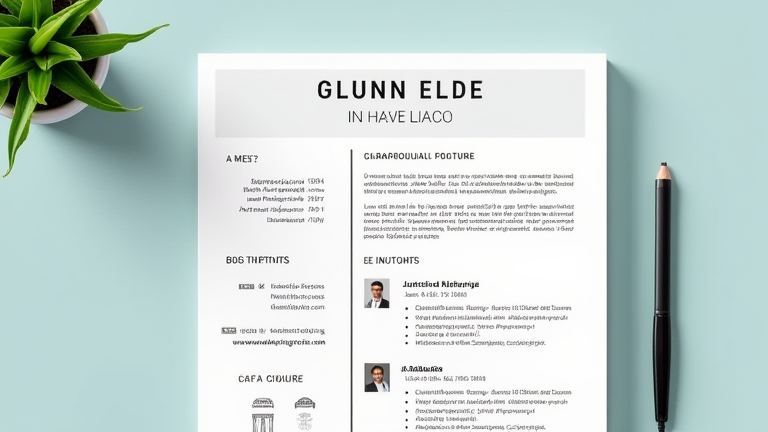
Canva Tutorial: Design a Professional Resume in 10 Minutes
TL;DR: While Canva is primarily a graphic design platform, it allows you to create polished, professional resume templates in under ten minutes. You can customize text, fonts, and colors to match your personal brand without needing advanced design skills.
Step-by-Step Instructions
Begin by logging into your Canva account and clicking on the search bar. Type “resume” into the search field to access hundreds of pre-designed templates. Select a layout that resonates with your industry; for example, minimalistic designs are often preferred in corporate settings, while creative fields may allow for more colorful elements. Once you have chosen a template, click “Use this template” to open the editor. This initial step saves significant time because the structure, spacing, and hierarchy are already established by professional designers. You do not need to start from a blank canvas, which often leads to alignment errors and unbalanced layouts.
If you want to dig deeper, check out our guide on 10 Unique Porcelain Gift Ideas: Elegant & Timeless Presents.
Next, replace the placeholder text with your own professional information. Start with your name and contact details, ensuring that your font size is larger than the body text to establish visual hierarchy. Click on any text box to edit it. Canva allows you to change font styles easily; stick to standard, readable fonts like Roboto, Open Sans, or Montserrat to ensure compatibility with Applicant Tracking Systems (ATS). Avoid overly decorative scripts that may be difficult for recruiters to read. As you input your work experience, keep bullet points concise and action-oriented. Focus on achievements rather than just duties. For instance, instead of saying “responsible for sales,” say “increased sales by 20% through targeted outreach.” This quantifies your impact and makes your resume stand out.
After entering your content, adjust the color scheme to match your personal brand or the corporate identity of the company you are applying to. Use the color picker to select a primary color for headings and a neutral color for body text. Consistency is key; ensure that the same color is used for all section headers. You can also add subtle icons to represent contact information, but use them sparingly to maintain a clean look. Finally, check the margins and spacing. Canva’s grid lines help you align elements perfectly. Review the document for typos and grammatical errors. Once satisfied, click the “Share” button in the top right corner, select “Download,” and choose “PDF Standard” for file size efficiency or “PDF Print” if you plan to print physical copies. This ensures that your fonts and layout remain intact when viewed on different devices.
Porcelain Gift Ideas Integration
Interestingly, while designing a resume, you might consider how your personal aesthetic translates into tangible objects. For instance, if you favor minimalism in your resume design, you might appreciate the clean lines of a porcelain gift idea product. Porcelain items, such as custom-engraved mugs or elegant vases, often reflect a sense of refinement and attention to detail similar to a well-crafted resume. Many professionals enjoy collecting high-quality porcelain pieces as desk accessories or gifts for colleagues. A simple white porcelain pen holder or a delicate teacup set can serve as subtle reminders of the craftsmanship and precision required in professional documentation. These items not only enhance your workspace but also provide a calming break during the stressful job search process. Incorporating such aesthetic elements into your daily routine can help maintain the focus and clarity needed to finalize your resume design effectively.
FAQ
Q: Can I use Canva templates for formal job applications?
A: Yes, Canva templates are professional and widely accepted, provided you choose a clean design and download your resume as a PDF to preserve formatting.
Q: How do I make my resume stand out without being unprofessional?
A: Use a unique color palette that reflects your personal brand and include a brief, impactful summary section, while keeping the layout clean and readable.
Q: Is it better to use a resume builder or a Canva template?
A: Canva offers more design flexibility and customization options, allowing for a more personalized look compared to the rigid structures of
Leave a Reply